

A phone shot that looked fine on your screen turns to mush the second it hits a 1200x1200 Facebook frame. Edges soften. Text on packaging turns to static. The reviewer either flags it for quality or your CTR quietly eats the cost of a creative nobody wants to click.
This is the most avoidable failure mode in ad creative. You do not need a reshoot, a stock photo license, or a designer on retainer. You need to know what resolution your placement actually wants, and a way to get a small source image there without smearing it into mush. That is exactly what Coinis's Ad Studio revise_creative_upscale tool does, and this is the walkthrough with real parameters, not a vague "just upscale it" gesture.
Why platforms reject (or silently punish) low-res images
Every major ad platform publishes a floor, and the floor is lower than what actually performs.
Meta's own Business Help Center lists 1080x1080 as the recommended minimum for Facebook Feed (1:1) and 1440x1800 for the 4:5 ratio, with Stories and Reels also pegged at 1080x1080 minimum (facebook.com/business/help/469767027114079). Google is blunter about the gap between "accepted" and "good": its Responsive Display Ad specs accept a 600x314 landscape upload but recommend 1200x628 "so the asset renders cleanly on Retina and 4K screens," and Google discounts any asset with more than 20% text overlay in ad-strength scoring (support.google.com/adspolicy/answer/10347108, google-ads image asset guidelines). Neither platform bans a soft image outright. Both quietly downrank it in ad-strength or serving eligibility, and neither will tell you that is what happened. Your CTR just looks worse than the creative next to it.
The gap matters more now than it did two years ago because so many source photos start life as a phone snapshot pulled straight from a product page or a supplier listing, at whatever resolution that page happened to serve. That is a fine starting point. It is a bad final asset, the same way a stale creative rotation quietly drags down performance long before anyone notices (see Mobile Game Ad Creative Fatigue for the rotation side of this problem).
What AI upscaling actually does (it is not "stretch and blur")
A naive resize just spreads the same pixel data over more pixels, which is why a badly upscaled image looks soft or waxy. An AI upscaler reconstructs plausible detail, inferring texture, edges, and fine structure the original resolution never captured, rather than just interpolating between existing pixels. That is the difference between a product label that reads clearly at 4K and one that dissolves into gray static the moment you zoom.
Coinis's Ad Studio exposes this as revise_creative_upscale, one of the "revise" family of tools that transform an existing creative without regenerating it from scratch (the same family as revise_creative_resize and revise_creative_translate, covered in the One Ad, Every Market article on this blog). Upscale takes one required input beyond your workspace: sourceImageUrl, the image you already have. Everything about the product and brand context is inherited from that source, no separate product setup needed.
Step-by-step: upscale a source photo for ad-ready resolution
1. Pick your target resolution, not just "bigger." The tool's targetResolution field takes three presets: 1080p, 2k, or 4k. Map the choice to where the ad is actually running, using the platform specs above as your floor:
1080p(1920x1080-class output) covers Meta's 1080x1080 minimums with headroom, fine for a single-placement Feed or Reels image.2kgives you enough resolution to safely crop or re-export into a 4:5 or 9:16 variant afterward without a second upscale pass.4kis the move when the same source image needs to survive Google's Retina-friendly 1200x628 recommendation, a Display Network banner, AND a print or landing-page reuse, all from one file.
There is also a customWidth/customHeight path (100 to 7680px) if a specific placement needs an exact pixel target rather than a preset tier.
2. Fire the call. The exact shape used here:
workspace_id: <int>
sourceImageUrl: "<hosted URL of the low-res source photo>"
targetResolution: "4k"
No productId is required to run the upscale itself. If the source image is already tied to a product or a prior generated creative, passing productId or parentId keeps the upscale linked in the Ad Studio history, but a bare sourceImageUrl call works standalone.
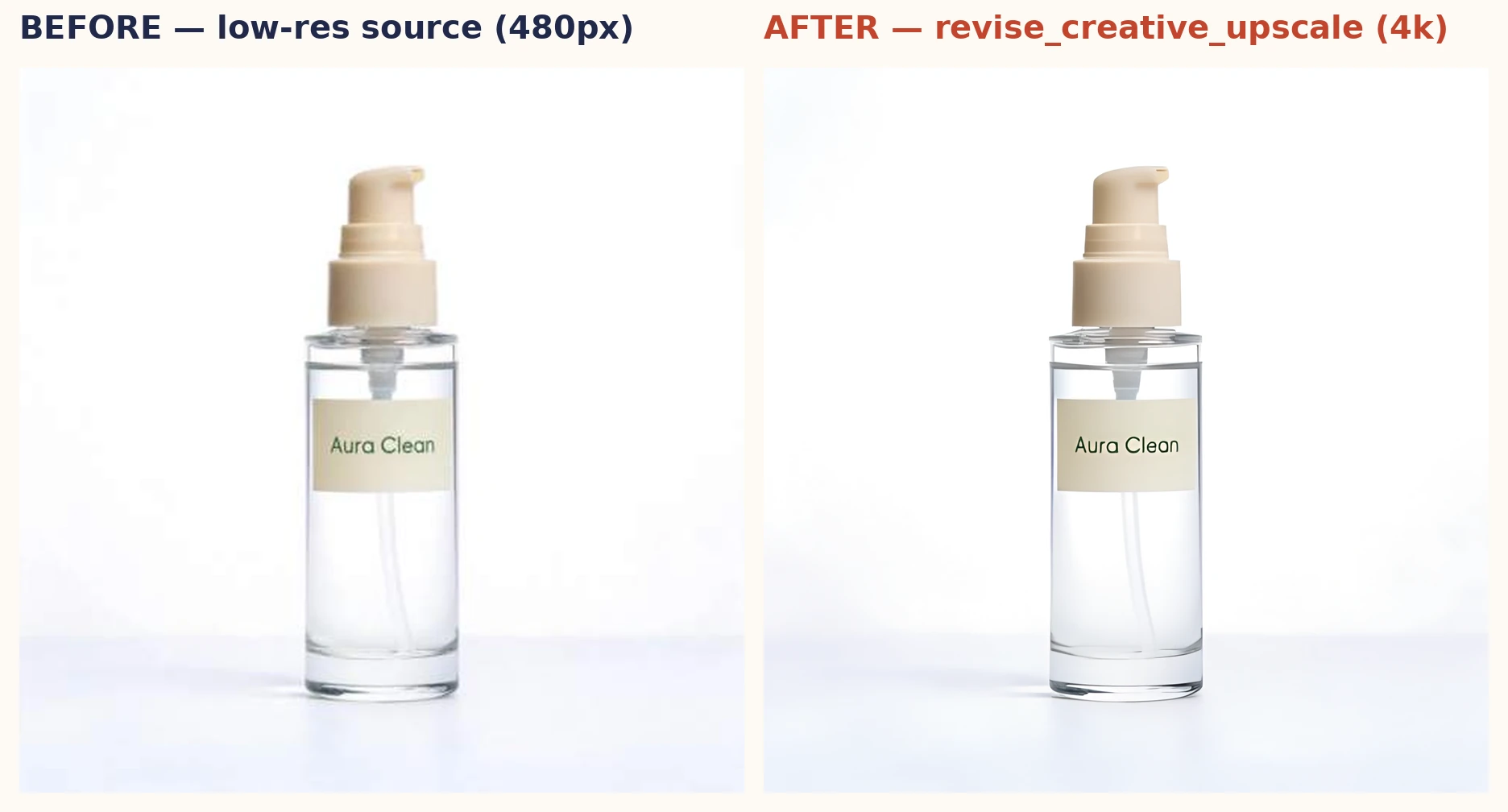
Real revise_creative_upscale output: a 480px low-res source upscaled to 4k. Label text stays legible, edges are sharp, no fabricated example.
3. Check the result at the pixel level, not just the thumbnail. Zoom into the specific area that mattered on the source (a label, a logo, a texture) and confirm the upscaler reconstructed detail there rather than just smoothing it. This is the same discipline this pipeline already applies to every generated image: a defect that only shows up at 100% zoom is still a defect.
4. Feed the upscaled file into the rest of Ad Studio. An upscaled image is not the finished ad. Route it into generate_image_templates for the actual multi-format ad layout (see One Photo, Every Ad Size), or into revise_creative_resize if you need a specific aspect ratio variant next, or the standalone image resizer feature for a quick manual crop. Upscaling fixes the one problem it is built for: not enough source resolution. It is the unglamorous fix that makes every downstream generation step actually usable.
When upscaling will not save a photo
An AI upscaler reconstructs plausible detail. It cannot recover information that was never captured at all: a subject that is badly out of focus, motion-blurred, or shot in near-darkness will upscale into a sharper-looking version of the same underlying problem, not a rescued photo. If the source image is unusable at any resolution, the fix is a better source photo (or a fresh AI-generated product shot), not a bigger version of a bad one. Treat upscaling as a resolution fix, not a photography fix.
The Coinis angle: from phone snapshot to launch-ready ad
The pattern that actually saves time is not "upscale this one image." It is: pull whatever source photo you already have, however small, run it through revise_creative_upscale once to clear the resolution floor for every platform you are targeting, then hand the result to an Ad Studio template so it comes out the other end as a launch-ready ad, not just a bigger JPEG. That is the differentiator Ad Studio sells over generic marketplace model access: one upload, one resolution fix, one template pass, and you have a creative that will not get quietly downranked for being soft. Start from whatever product photo you already have and let Ad Studio close the gap between it and the resolution your placements actually reward.
FAQ
What resolution do I actually need for a Facebook or Instagram ad image? Meta's stated minimum is 1080x1080 for a square Facebook Feed image and 1440x1800 for 4:5, with Stories and Reels also pegged at 1080x1080 minimum. Coinis's 1080p upscale preset clears that floor with margin. 2k is safer if you plan to crop into multiple aspect ratios from the same file (see the Facebook ad image resize how-to for the exact crop specs per placement).
Does AI upscaling actually add real detail, or does it just make the image bigger? It reconstructs plausible texture and edge detail based on patterns learned from real images, which is why a properly upscaled product label stays legible where a simple resize turns to static. It cannot invent detail that was never captured at all: severe blur, motion blur, or extreme underexposure will not be fixed by upscaling.
Will upscaling change my product's shape, color, or branding? No. revise_creative_upscale increases resolution and reconstructs fine detail. It does not regenerate the product, change composition, or alter brand colors, unlike a full generate_* call that creates a new image from scratch.
Which resolution preset should I pick, 1080p, 2k, or 4k? Match it to your heaviest downstream use, not your lightest. If the image only ever runs as one Meta Feed placement, 1080p is enough. If it needs to survive Google's Retina-recommended 1200x628 spec, a Display banner, and a possible print reuse, go straight to 4k so you are not re-upscaling the same file later (the Google ad image resize how-to covers the exact Display Network crop targets).
Do I need a product already set up in Ad Studio to use the upscaler? No. Unlike generate_ugc_video or generate_image_templates, which require a resolved product catalog entry, revise_creative_upscale runs off a bare sourceImageUrl. Linking it to a product via productId is optional, useful for keeping the upscale in that product's Ad Studio history but not required to run the tool.
Sources
- Meta Business Help Center, "Recommended minimum image sizes for Meta ads" -- https://www.facebook.com/business/help/469767027114079
- Google Ads Help, "Image assets format requirements" -- https://support.google.com/adspolicy/answer/10347108

Isidora Matovic
Author
Social media enthusiast and a full time researcher. She takes digital presence very seriously and that is why you are always in touch in what is going on with us! Follow us for more posts like this.